How to connect ChatGPT to DT Terminal with MCP
By DT Terminal · Published
ChatGPT connects to DT Terminal as a custom connector, which needs a ChatGPT account with Developer mode turned on. In DT Terminal, open Settings, MCP and press Connect to ChatGPT, which copies the connector URL and opens ChatGPT's settings. In ChatGPT, open Settings, then Plugins, then Developer mode, and turn it on. Then open Plugins in ChatGPT's sidebar, press +, choose Add custom MCP server, then Create MCP App, and paste https://dtterminal.app/api/mcp as the Server URL with OAuth. ChatGPT sends you to DT Terminal to sign in and shows what it is asking for. Reading your profile, journal, backtests and connected accounts is ticked; writing is not until you tick it, and nothing can place a trade at your broker. Tick the box that says your data will leave DT Terminal and press Allow. Turn the connector on in a new chat and ask about your trades. Settings, MCP lists every call ChatGPT makes, and Disconnect stops it at once.
Step by step
You need a ChatGPT account with Developer mode turned on. The rest takes a few minutes.
01Copy the connector URL
Open DT Terminal, go to Settings and choose MCP. The connector URL sits at the top: https://dtterminal.app/api/mcp. Connect to ChatGPT copies it for you and opens ChatGPT's Plugins settings.
MCP needs a paid DT Terminal plan: Verified lets the app read your account, and Pro also lets it write to your journal. You need an account before you connect, because the app you connect signs in to it.
- Settings, then MCP, then Copy next to the connector URL
- Or press the button for your app and skip the copying
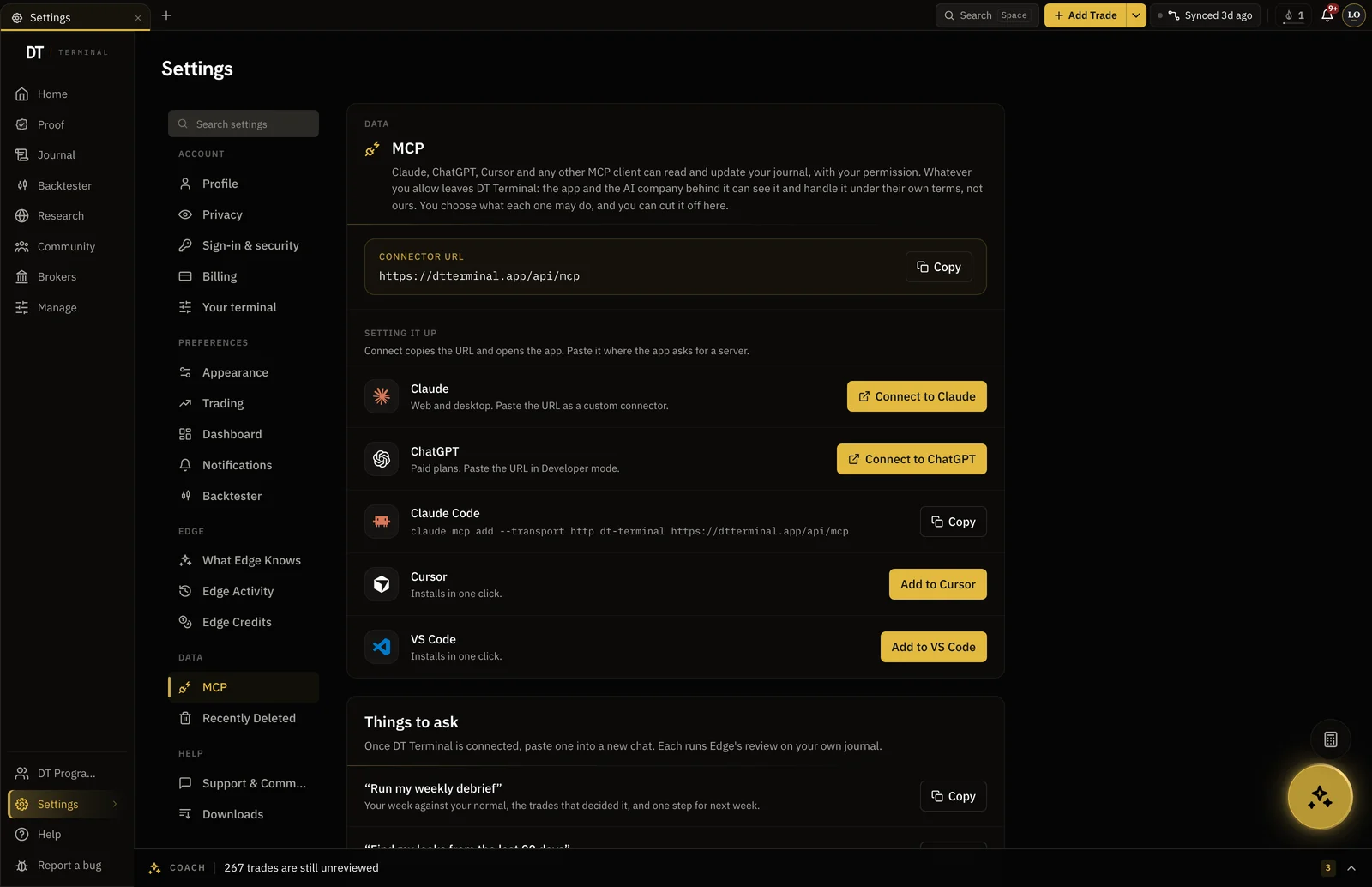
02Create the connector in ChatGPT
Custom connectors in ChatGPT need a ChatGPT account and Developer mode. To connect DT Terminal to ChatGPT:
- In ChatGPT, open "Settings", go to "Plugins", then "Developer mode", and turn Developer mode on.
- Open "Plugins" in ChatGPT's sidebar, press "+" and choose "Add custom MCP server".
- Skip the upload box and press "Create MCP App".
- Name it "DT Terminal", leave Connection on "Server URL" and paste the URL below.
https://dtterminal.app/api/mcp - Keep Authentication on "OAuth", tick "I understand and want to continue", then press "Create".
- ChatGPT opens DT Terminal in your browser. Sign in there and check the request, as below.
03Sign in and check the request
DT Terminal shows who is asking, the account it will act as and where your data is sent. For ChatGPT that address is chatgpt.com. DT Terminal does not check who runs an app, since anyone can register one and pick its name, so deny it if the address is not chatgpt.com.
- The screen says ChatGPT wants to connect
- It sends to chatgpt.com
- Deny anything you did not just set up
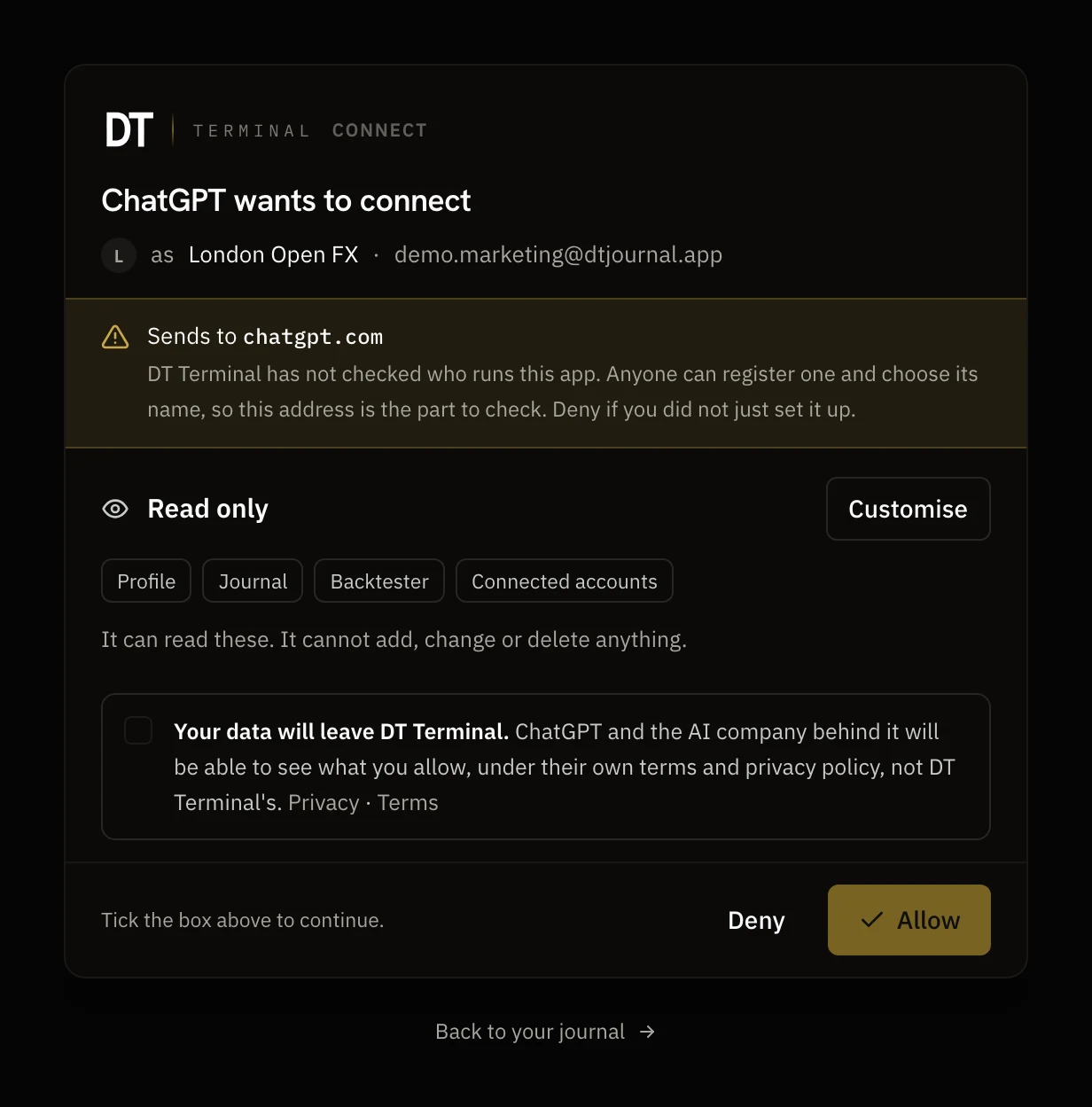
04Choose what ChatGPT can do
Reading is ticked and writing is not. Press Customise to see all seven permissions: read your profile, read and change your journal, read and change your backtests, read and change your connected accounts.
Tick a write only if you want ChatGPT to log trades, write reflections or start a sync for you. No permission can place a trade at your broker. Then tick the box that says your data will leave DT Terminal, and press Allow.
- Reads are on, writes stay off until you tick them
- Nothing you allow can place a trade
- What ChatGPT reads is handled under its own terms from then on
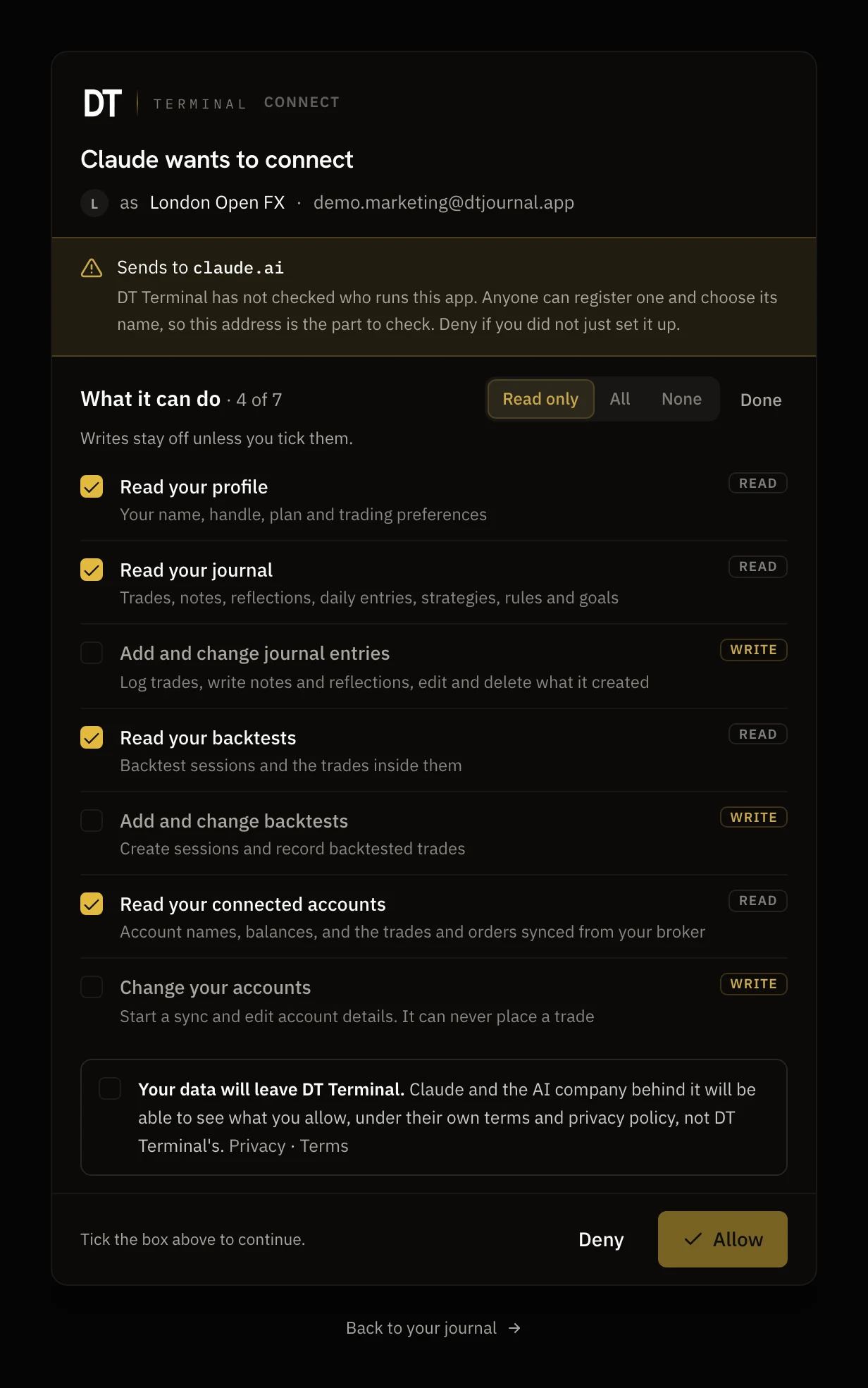
05What to ask ChatGPT
Ask about your trades the way you would ask Edge, the coach inside DT Terminal. ChatGPT reads the same journal, so its answers come from your own record rather than from trading in general.
Turn the connector on in a new chat before you ask. If ChatGPT answers without it, name it in the question, for example "Using DT Terminal, find my leaks from the last 90 days".
- Run my weekly debrief
- Find my leaks from the last 90 days
- Review today against my plan
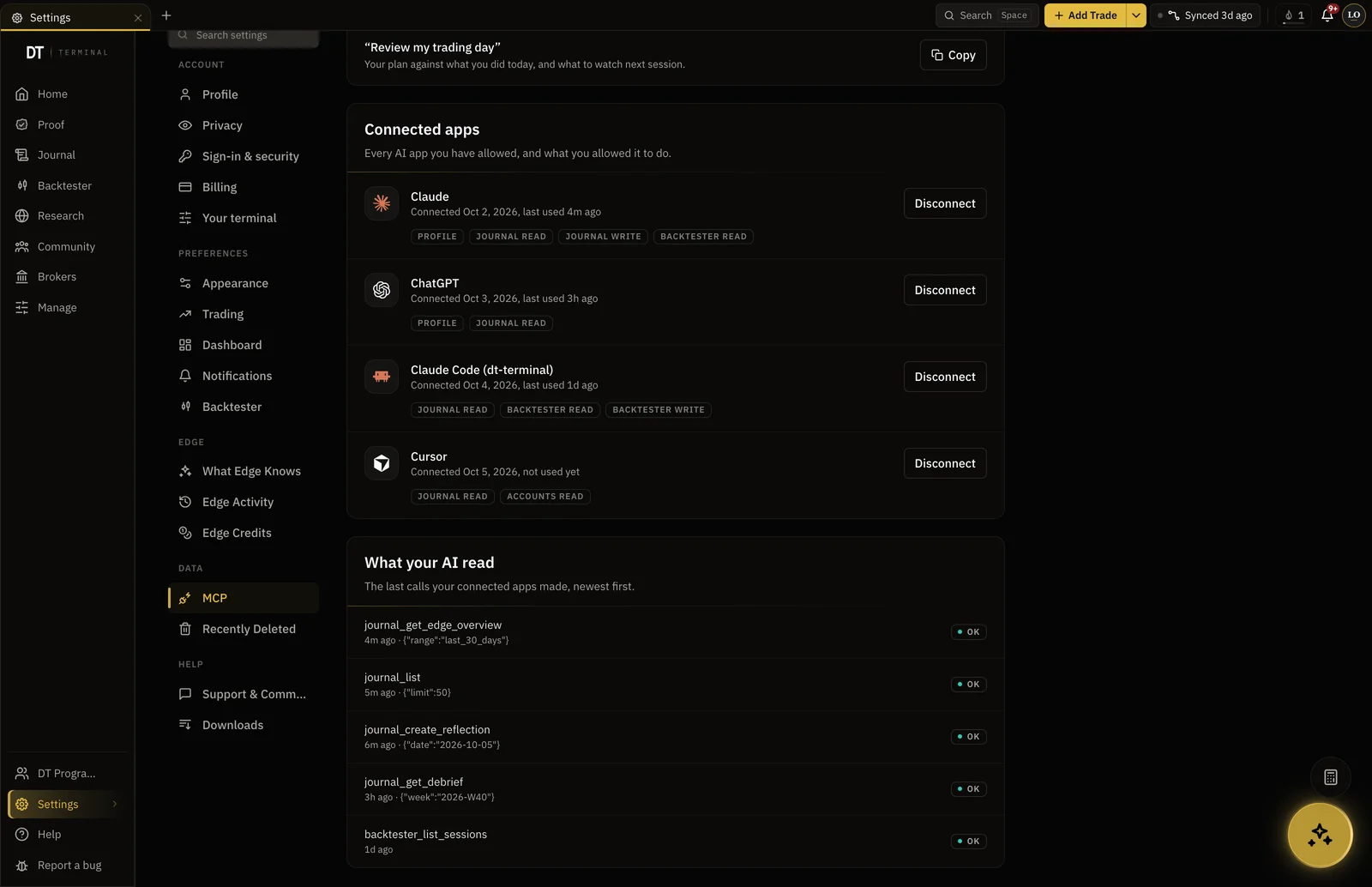
06See what it did, and disconnect
Settings, MCP lists ChatGPT with when you connected it, when it was last used and what it may do. Under it, What your AI read lists the latest calls, newest first, and whether each one worked.
Disconnect stops ChatGPT at once. Every token it held stops working, and it cannot read or change anything until you connect it again. What it already read stays with it.
- Every call it made, newest first
- Disconnect cuts it off straight away
FAQ
The Model Context Protocol is an open standard for connecting an AI app to a tool it can read and use. An app that speaks it can work with any product that publishes a connector, without a separate integration for each one.
Any ChatGPT account where Developer mode shows up under Settings, Plugins. If it is missing, your plan or your workspace admin may not offer it. On the DT Terminal side you need Verified to connect and read, and Pro to let ChatGPT write to your journal.
Only on Pro, and only if you tick a write permission for it. On Verified it can read but not write, and reading is the default on Pro too. With journal write it can log trades, write notes and reflections, and edit or delete what it created. Every call it makes is listed in Settings, MCP.
No. Broker connections are read only by design. The accounts write permission can start a sync and edit account details, and no permission opens order execution, whatever the app asks for.
Check that Developer mode is on and that the URL is exactly https://dtterminal.app/api/mcp, with nothing added. Then delete the connector in ChatGPT and create it again, so it signs in afresh.
Open Settings, MCP in DT Terminal and press Disconnect next to ChatGPT. Its access stops at once. Delete the connector in ChatGPT as well, so it stops asking.
Claude, ChatGPT, Claude Code, Cursor and VS Code each have a button in Settings, MCP and a page like this one. Any other app that supports remote MCP servers with sign in can connect with the same URL.